

Prerequisites
When you choose to use Cybersource as a payment gateway alongside Cybersource Decision Manager, you must configure the Extended Settings in the Cybersource Enterprise Business Centre (EBC). This makes sure the payment processing and anti-fraud checks run independently and allows the system to manage the status of the transaction correctly. In EBC head over to Decision Manager -> Configuration -> Extended Settings, and then ensure the following values are unchecked.- Authorization-Card-Present
- Authorization-Card Not Present
Credentials
To configure a Decision Manager connection, you need to set the following credentials. All of them are required.Decision Manager requests are signed with a P12 certificate. SOAP Toolkit Keys
aren’t supported. If your connection was set up with a SOAP Toolkit Key, add a
P12 certificate and its password, otherwise every decision is
skipped. See the
Cybersource guide to
create a P12 certificate.Device fingerprinting
The use of device fingerprinting is highly recommended when using Cybersource DM. The device fingerprint passed to Cybersource is generated automatically by the device fingerprinting library. If you want to pass your ownantiFraudFingerprint to Embed or to the API,
load the fingerprint script for Cybersource directly. The script’s session_id
is your Merchant ID followed by a unique value that you generate. Pass only that
unique value, without the Merchant ID prefix, as the anti_fraud_fingerprint to the
new transaction API. The
device fingerprinting library sets these values the same way.
Webhooks for manual review
To enable manual review you need to set up webhooks from your anti-fraud service to the system. This webhook is used to notify the system when a review is accepted or rejected. To get the webhook URL, head over to your connection by going to Connections -> [Anti-Fraud connection] -> Overview and copy the Review queue webhook URL. Next, login to EBC and navigate to Decision Manager -> Configuration -> Extended Settings and paste the webhook URL into the Configure Order Status Notification input.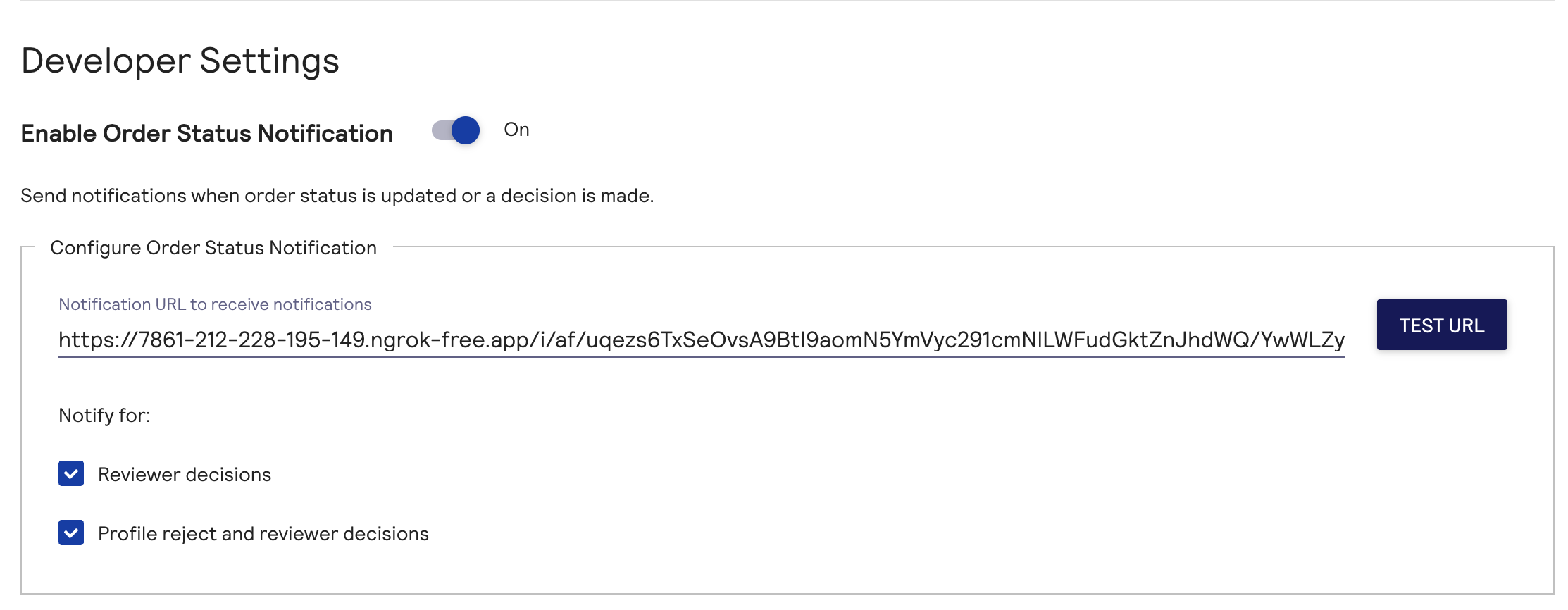
Configuration of the webhook URL
ACCEPT and REJECT review outcomes are processed from this webhook.
If a transaction reaches a final status while its review is still pending, the system
closes the case in Decision Manager. A voided transaction, or one captured after a separate
authorization, closes the case with ACCEPT. A declined or failed transaction closes it
with REJECT. When a transaction is authorized and captured in one step and the review
queue is on, the case stays open so a later REJECT can refund it.
Decision mapping
Decisions received from Cybersource are mapped to the decisions according to the following logic.
If any of the data requirements below are not met, the decision is
skipped. If there was a
technical issue reaching Cybersource the decision returns as an exception.
Buyer requirements
When using Decision Manager, an anti-fraud decision is only possible if the transaction has a minimum set of required fields set on a buyer. To call DM, the transaction must be associated with a buyer, or include guest buyer details, and the buyer’s billing details must have the following fields populated.- First name
- Last name
- Email address
- Line 1
- City
- Country
- Postal code
Additional data
When any of the following attributes are associated with a transaction they are sent to Cybersource Decision Manager as well.- The buyer’s billing phone number, address line 2, and state.
- The buyer’s shipping details.
- Any cart items.
- Card details, including for cards used through digital wallets.
- Browser details, such as IP address and user agent.
- The device fingerprint, when the
anti_fraud_fingerprintis set.
Connection options
You can pass the following options for Cybersource Decision Manager using thecybersource-anti-fraud key of the
connection options.
Sandbox testing
Using the EBC portal you can create custom rules for Decision Manager. For example, you may choose to create a rule which marks a transaction for manual review given the postal code matches a specific value. To test this rule you need to perform the following steps in the dashboard.- Create a Cybersource Decision Manager connection
- Create a buyer with a matching postal code
- Create a Flow rule to leverage the Cybersource Decision Manager connection
- Create a transaction using the newly created buyer